

Workplace for Mac
To install Workplace on your Mac you will need to download the installer from the address provided in your welcome email.
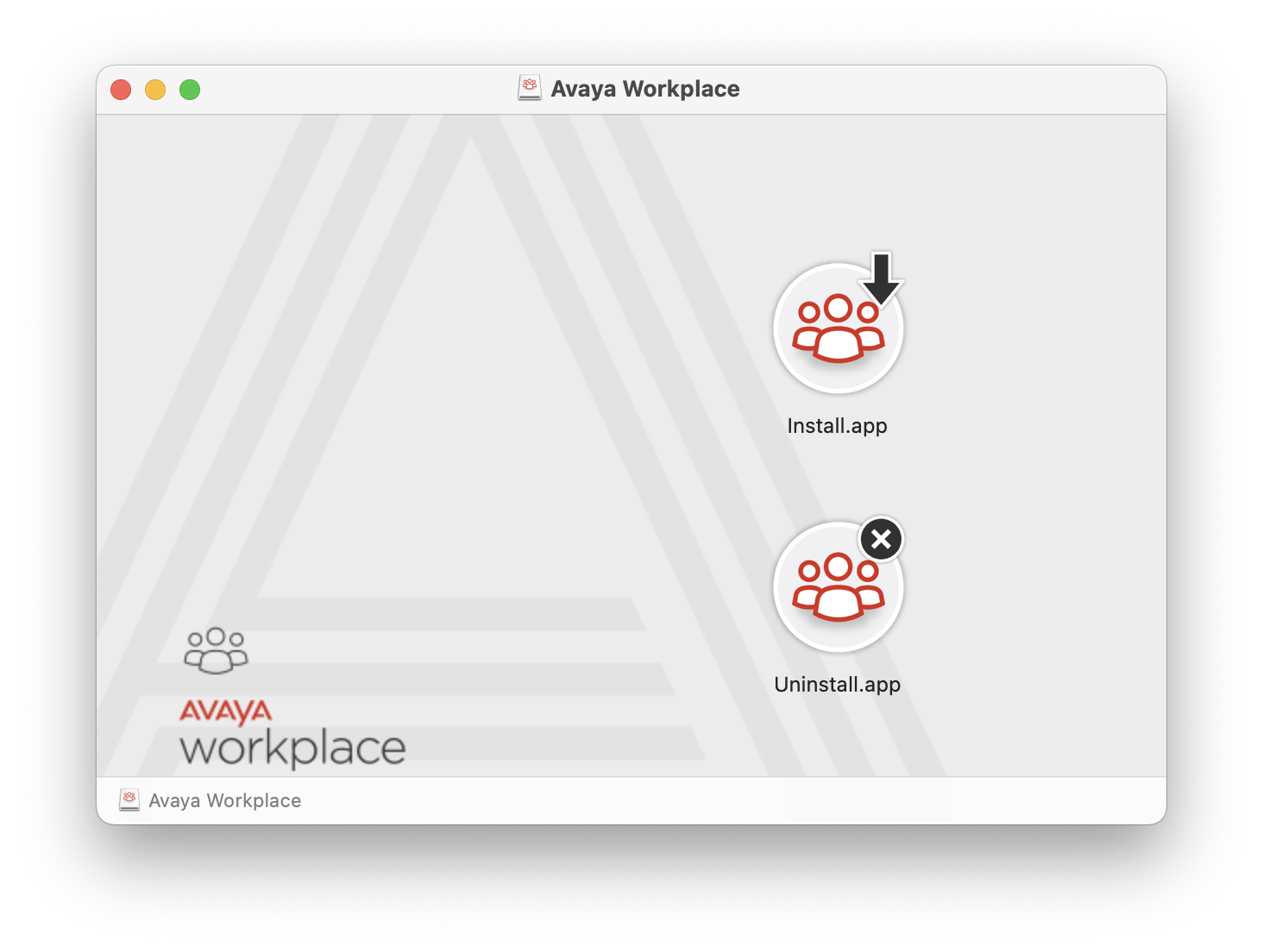
When you have downloaded and extracted the zip run the main DMG (not the Sparkle version as this is used for automatic updates).
Run “Install” and follow the prompts to install the software:
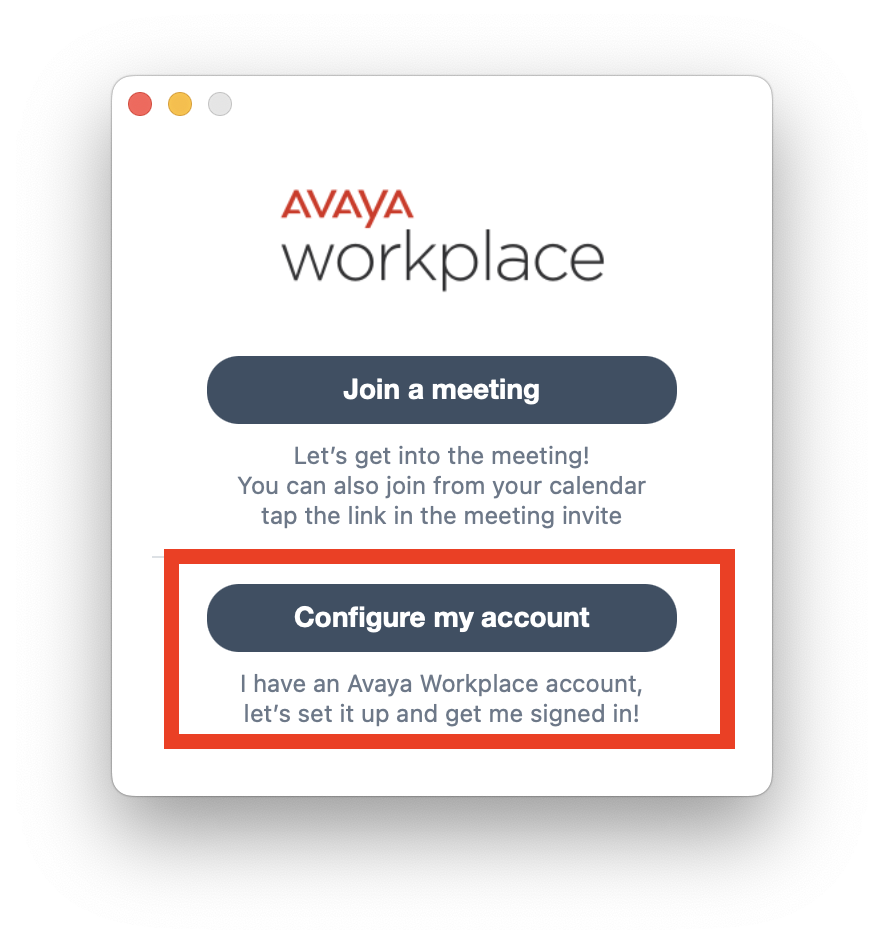
Once it is installed you can run Avaya Workplace from your applications folder and you will need to select “Configure my account”:
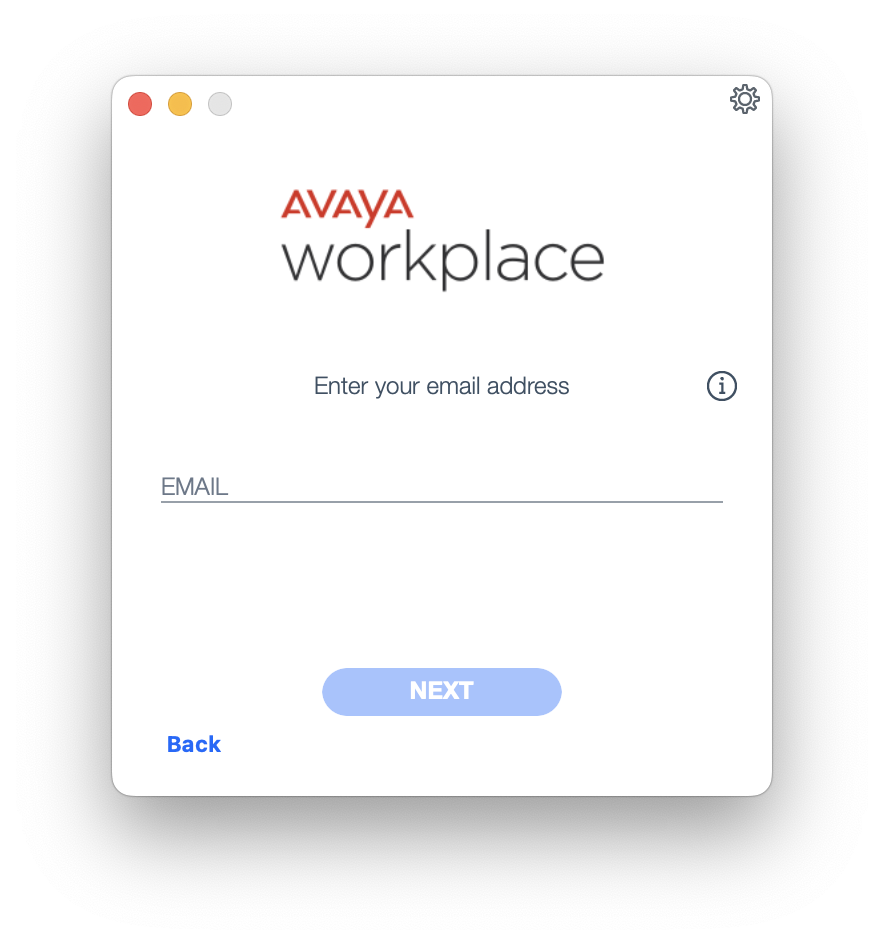
You will be prompted to enter an email address. Enter an email address in the format of “extension@phonenet.net” then select Next.
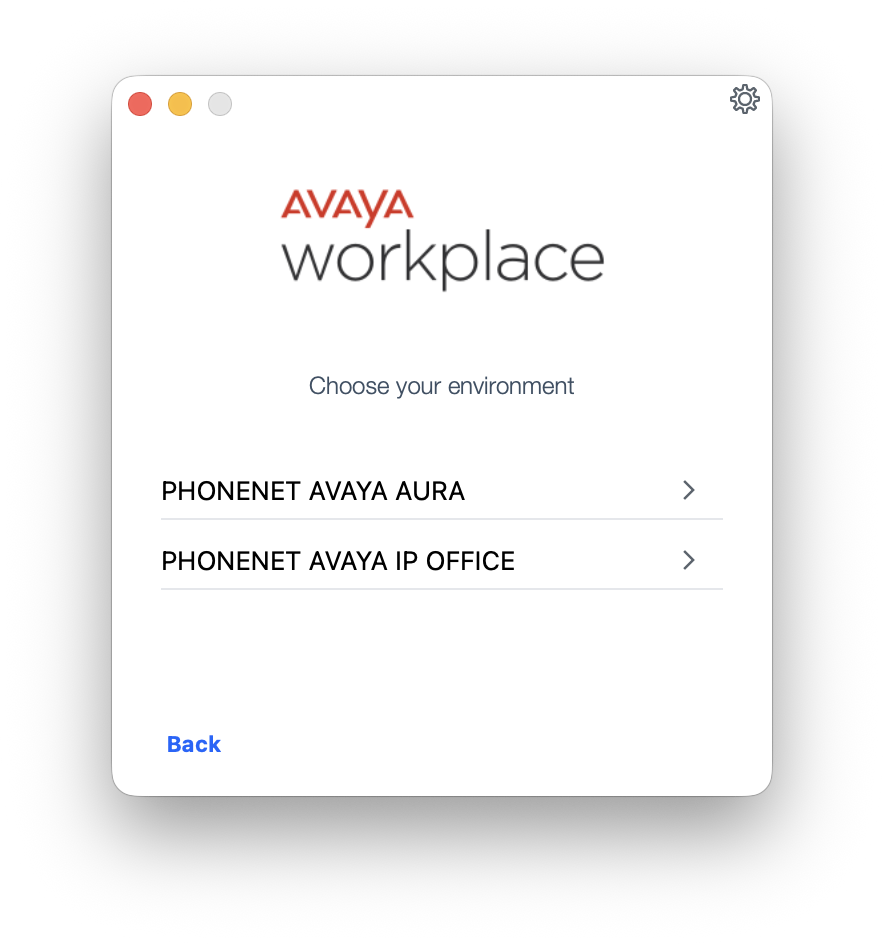
You will be asked what type of environment you are connecting to. Select the service that your line is provisioned on:
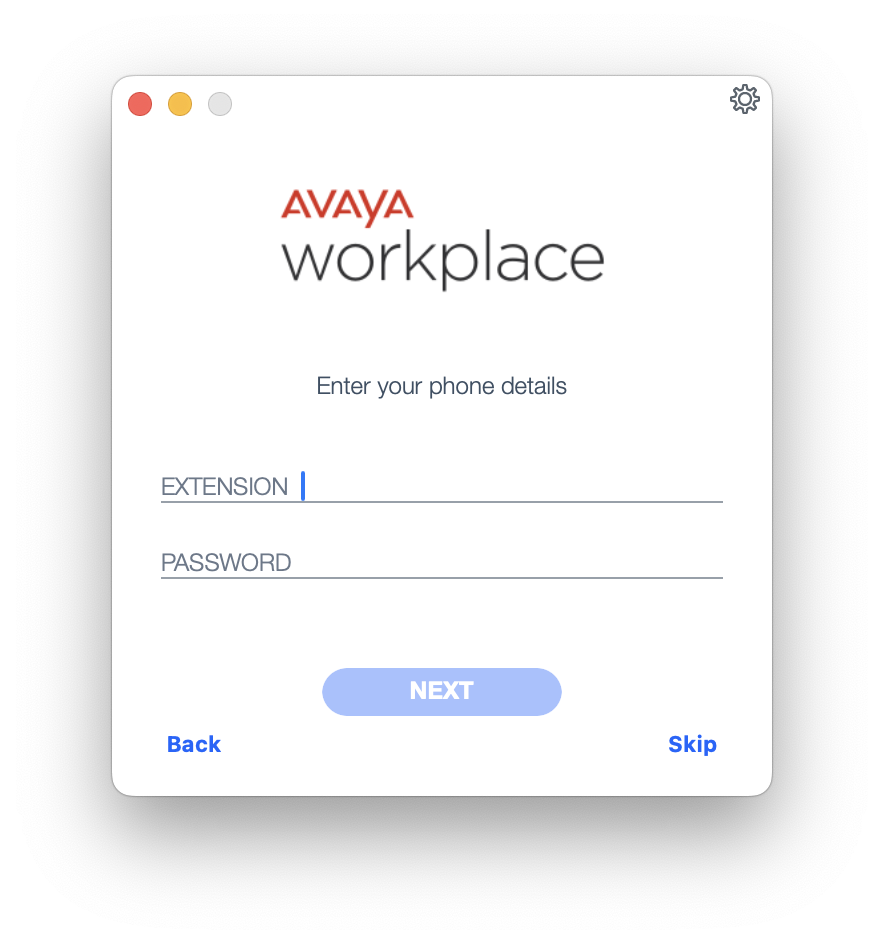
The application will automatically configure itself for PhoneNet and prompt for your extension and password. Enter the details provided in your welcome email and click Next:
Once you have completed these steps you should be connected. If you have any issues please contact our Service Desk.